Summary of 10 beautiful photo editing formulas with iPhone to post status on Facebook.
Owning beautiful photos is the desire of most women and young people today. However, not everyone knows how to edit photos on an iPhone to make them beautiful. FindUid will Summary of 10 beautiful photo editing formulas with iPhone to post status on Facebook to you.
Steps to edit photos on iPhone.
Step 1: Access the Photos app on iPhone, select a photo and click the "Edit" button.
Step 2: Adjust exposure and highlights according to the formula you choose.
Step 3: According to the formula you choose to customize highlights and shadows.
Step 4: Adjust saturation and sharpness according to the formula you choose.
Step 5: Finally, press the done button to save the photo you edited.
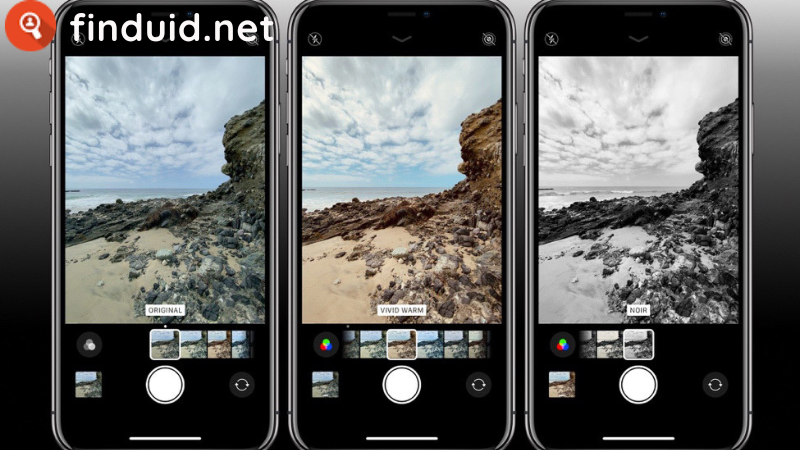
Backlight correction formula
Many of you have encountered a situation where you have a very beautiful photo, but the photo is backlit, making the photo dark and not beautiful. Below is a photo editing formula to help you turn a backlit photo into a beautiful photo.
| Element | Index
| Exposure | 50
| Luminance | 80
| Bright area | -80
| Dark area | 40
| Contrast | -30
| Brightness | 10
| Black spot | 15
| Saturation | 10
| Freshness | 10
| Warmth | -10
| Definition | 5
| Noise reduction | 5

Recipe for editing outdoor photos
Outdoor photos always bring a lot of vitality to the photographer. To make your photo more sparkling, try editing it according to the following formula!
| Element | Index
| Exposure | +30
| Luminance | +30
| Bright area | -90
| Dark area | +60
| Contrast | -50
| Brightness | +20
| Black spot | +12
| Saturation | +9
| Freshness | +20
| Warmth | -30

Formula for editing sky photos
Sometimes we can take beautiful pictures of the sky but not enough brightness. But there are many people taking photos of the sparkling beautiful sky. Try this recipe for editing sky photos on iPhone now.
| Element | Index
| Luminance | +100
| Bright area | -100
| Dark area | 0
| Contrast | -16
| Brightness | +82
| Black spot | -12
| Saturation | 58
| Tones | 100
| Freshness | -12
| Warmth | 9
| Sharpness | 3

Formula for editing photos at night
Night photos always bring an indescribable chill feeling. To get beautiful night photos, you can apply the following photo editing formula:
| Element | Index
| Exposure level | 13
| Luminance | -3
| Bright area | 31
| Dark area | 33
| Contrast | -26
| Brightness | 23
| Saturation | 8
| Freshness | 42
| Warmth | -72
| Tones | 8
| Sharpness | 8

Formula for editing portrait photos
The iPhone's regular camera in portrait mode takes beautiful photos, but to get a perfect portrait photo, you can adjust the photo according to the following formula:
| Element | Index
| Exposure level | -18
| Luminance | 49
| Bright area | -100
| Dark area | 46
| Contrast | -24
| Brightness | 34
| Saturation | 34
| Sharpness | 17

Recipe for editing beach photos
To have a chill and beautiful beach photo at first sight, you can apply the photo editing formula on iPhone as follows:
For photos with reflections
| Element | Index
| Exposure level | +50
| Bright area | -80
| Dark area | +40
| Brightness | +10
| Luminance | +80
| Contrast | -30
| Saturation | +10
| Freshness | +10
| Warmth | -10
| Sharpness | +5
| Black spot | +15
| Noise reduction | +5

For blue tones
| Element | Index
| Warmth | +100
| Exposure level | -20
| Luminance | +25
| Bright area | -40
| Dark area | +45
| Contrast | -45
| Freshness | +42
| Saturation | -40
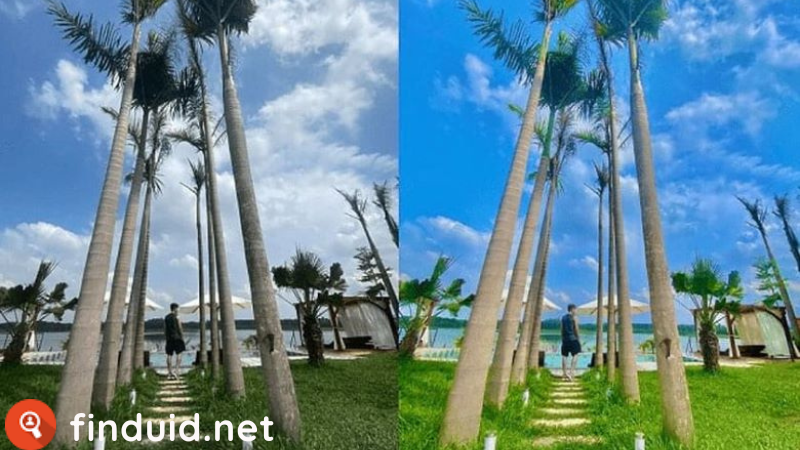
Picnic photo editing formula
You can apply this formula to get a great set of picnic photos.
| Element | Index
| Luminance | +60
| Bright area | -85
| Dark area | +30
| Contrast | -10
| Saturation | -17
| Freshness | +30
| Warmth | -17
| Tones | +35

In-house photo editing formula
You can apply the following photo editing formula on the iPhone to get sparkling and poetic indoor photos.
| Element | Index
| Luminance | +20
| Bright area | -20
| Dark area | +20
| Contrast | -30
| Saturation | +30
| Freshness | +10
| Warmth | -10

Formula for editing photos taken through windows
Photos taken through the window always bring a strange feeling of chill and loneliness. Apply this photo editing formula on the iPhone to get great photos!
| Element | Index
| Warmth | +100
| Luminance | -20
| Brightness | +25
| Bright area | -40
| Dark area | +45
| Contrast | -45
| Freshness | +42
| Saturation | -40

General photo editing formula for iPhone
Below is a general photo editing formula for beginners
| Element | Index
| Luminance | +100
| Bright area | -26
| Dark area | -16
| Contrast | -23
| Sharpness | +5
| Saturation | +50